
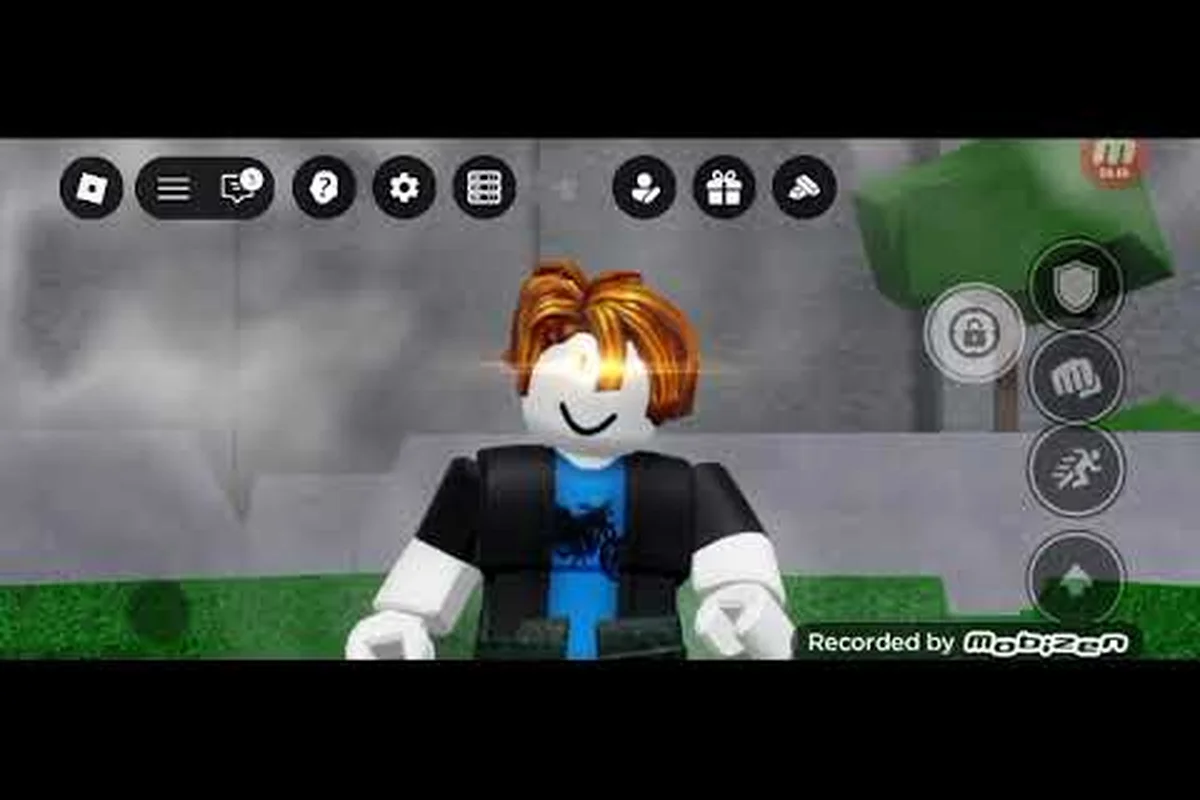
Legends Battlegrounds mobile controls decide most fights before a single combo lands, because touchscreen players who fumble the layout lose to cleaner inputs. This guide breaks down the exact on-screen buttons for moving, dashing, blocking, and dodging so your stickman reacts the instant you tap.
Reading the On-Screen Control Layout
The touchscreen HUD in this Roblox fighter is built around a left-side virtual joystick and a cluster of right-side action buttons, and every input maps to a keyboard equivalent so cross-platform players share the same combat rules. According to the official Roblox game page, the title launched on November 5, 2023, and runs across PC, mobile, and console, which means the mobile layout mirrors the same four core actions that define every duel.
Before you touch a single match, spend two minutes in the lobby practicing thumb placement. Most mobile players lose their first few rounds not because of bad reflexes but because their thumbs rest too far from the buttons they need most.
-
Left thumb — virtual joystick for movement and directional facing
-
Right thumb — M1 light attack, Q dash, F block, and G awakening
-
Tap-and-hold — charge or hold inputs on certain movesets
-
Double-tap joystick — quick directional flick for repositioning
The table below shows how each touchscreen action lines up with its keyboard counterpart, which helps if you ever switch devices mid-session. Because the mobile HUD mirrors the PC bindings one-to-one, a dash you trigger with the right-thumb Q button covers the same distance and carries the same cooldown as a keyboard Q press, so your spacing and punish timing stay identical whether you are on a phone or a desktop. The one real gap is the W A S D joystick: on mobile, movement and directional facing are fused into a single virtual stick, so you cannot strafe and turn independently the way a keyboard player can. That means learning to dodge by double-tapping the joystick rather than sidestepping, since the stick's flick input is your fastest repositioning tool when a G awakening or M1 combo is winding up.
| Mobile Action | Keyboard Equivalent | Primary Use |
|---|---|---|
| Virtual joystick | W A S D | Movement and facing |
| Attack button | M1 (left click) | Light attack combos |
| Dash button | Q | Closing distance or escaping |
| Block button | F | Damage reduction and guard |
| Awakening button | G | Ultimate activation |
If you want the deeper breakdown of how each moveset chains these inputs, the secret moves and stance guide covers the combo trees that sit on top of this control scheme. That layering matters because the mobile HUD only exposes the raw inputs — M1, Q, F, and G — while the actual damage comes from how you sequence them. A stance-swap cancel, for example, still fires from the same G awakening button, but the follow-up M1 string branches differently depending on which stance was active when you pressed it, so the button count never changes even though the combo tree does. The guide maps those branches move by move, which is why it pairs naturally with the layout table above: learn the buttons here, then learn what to chain them into there.
Adjusting Sensitivity and Button Size
Roblox's mobile client lets you resize and reposition every on-screen button through the in-game settings menu, and this is the single biggest quality-of-life change a touchscreen player can make. Shrink the joystick slightly and pull the action cluster closer to your right thumb's resting arc so you never have to stretch mid-combo.
A good starting point is bumping button transparency down so the buttons stay visible without blocking your view of the opponent, and increasing joystick sensitivity if you find yourself under-rotating during fast direction changes. Players who main aggressive rushdown characters usually want a larger dash button, while defensive players benefit from a bigger block button placed closer to the thumb.
How to Move on Mobile Without Losing Facing
Movement in Legends Battlegrounds is not just walking — your character's facing direction determines which way your attacks land, so sloppy joystick control means whiffed combos. The virtual joystick controls both position and orientation, and the moment you release it your character keeps facing the last direction you pushed.
This is why directional discipline matters more on mobile than on PC. On keyboard you can tap a single direction key to snap facing, but on a touchscreen you need a deliberate, short joystick flick rather than a slow drag.
The Facing Snap Technique
The facing snap works because Legends Battlegrounds reads joystick direction as a discrete input the moment you release it, not as a continuous drag — so a quick flick-and-release registers a full 180° rotation without triggering the walk animation that would otherwise carry you two or three body lengths past your target. This matters most with short-range brawlers whose combos open on a directional heavy; if your facing is off by even 45°, the first hit whiffs and the opponent gets a free punish window during your recovery frames. Pair the snap with your block button held during the release to cancel the residual movement entirely, giving you a planted, correctly-angled stance before the first attack input lands.
-
Push joystick toward opponent, then release to lock facing
-
Avoid holding the joystick during attack animations — it can drift your aim
-
Use small circular motions to re-orient after a dodge
-
Practice the snap in the lobby before ranked duels
Combining movement with attacks is where mobile players separate themselves. If you tap attack while the joystick is still pushed forward, your character steps into the swing, which is great for closing gaps but risky if the opponent is blocking. Learning when to move and when to plant your feet is the core skill this control scheme rewards.
| Movement Scenario | Joystick Input | Why It Works |
|---|---|---|
| Approaching a passive opponent | Hold forward | Closes distance for combo start |
| Circling a blocker | Small side flicks | Avoids frontal guard |
| Retreating after a whiff | Hold back briefly | Resets spacing safely |
| Re-facing after a dodge | Quick directional tap | Realigns attacks instantly |
How to Dash and Use It Defensively
Dashing is your fastest repositioning tool, and on mobile it lives on the Q button, which most players map to the right-side action cluster. A dash covers ground quickly and, crucially, can cancel certain recovery animations — community players frequently describe using dash to escape the tail end of a missed attack.
The dash has a short cooldown, so spamming it leaves you stranded when you actually need an escape. Treat it as a resource: one dash to close distance, one dash held in reserve to bail out of a bad exchange.
Dash Cancels and Recovery
A well-timed dash can cancel the recovery frames of a heavy attack, letting you transition straight into a follow-up or a defensive retreat. This is the mechanic that makes aggressive mobile play viable, because without canceling you would be stuck in end-lag while the opponent punishes you.
-
Dash immediately after a whiffed heavy to escape punishment
-
Dash forward mid-combo to chase a retreating opponent
-
Dash backward to reset spacing when your guard breaks
-
Save one dash charge for emergencies rather than opening with it
Players report that the dash timing feels slightly tighter on mobile than on PC due to touch latency, so practice the cancel window in casual matches before relying on it in ranked. The awakening and ultimate guide explains how dash positioning sets up your ultimate finisher, since most ultimates need you to be facing the right way at the right range.
| Dash Use | Input Timing | Risk Level |
|---|---|---|
| Offensive gap-close | During approach | Medium |
| Recovery cancel | Right after heavy whiff | Low |
| Defensive escape | When guard breaks | Low |
| Combo extension | Mid-chain | High |
How to Block and Hold Your Guard
Blocking is mapped to the F button and reduces incoming damage while you hold it, but it is not a passive shield — a smart opponent will break your guard if you turtle too long. On mobile, the block button sits close to attack, so you can flick between guarding and striking quickly.
The key insight is that blocking is a timing tool, not a wall. You block the moment you read an incoming heavy, then release and counter while the opponent is stuck in their own recovery. Holding block through a full combo invites a guard break, and that punish usually costs more HP than the chip damage you absorbed. Practically, tap-block the first hit of a string, then dash-cancel out with your movement stick and punish the whiff — this is the same read-and-release rhythm you use for dodges, just anchored to the F button instead of a directional input.
Blocking Against Combo Pressure
When an opponent starts a light-attack string, holding block absorbs chip damage but does not stop the string entirely. Your goal is to block just long enough to identify the pattern, then dash out or counter on a predictable gap.
-
Block the first hit to read the combo rhythm
-
Release and dash the moment you spot a gap
-
Never hold block against a known guard-breaker move
-
Pair block with backward joystick input to create space
Community testing suggests guard-break moves punish extended blocking hard, so mobile players who default to holding the button get opened up fast. The fix is to treat block as a half-second reaction, not a stance you live in.
| Defensive Situation | Recommended Input | Outcome |
|---|---|---|
| Incoming heavy attack | Tap block | Absorbs damage |
| Light combo string | Block then dash | Escape pressure |
| Guard-breaker incoming | Dodge instead | Avoid break |
| Low health retreat | Block plus backstep | Buys space |
How to Dodge and Read Attack Timing
Dodging is the most skill-dependent mobile input because it demands you read the opponent's animation and react within a tight window. Unlike blocking, a successful dodge avoids damage entirely and often leaves the opponent whiffing, which opens a free counter.
On mobile the dodge is typically a directional input combined with a defensive tap, and the direction you choose matters — dodging into the opponent's attack line wastes the dodge, while dodging to the side or behind creates a punish opportunity.
Dodge Direction and Punish Windows
The instinct for new players is to dodge backward, but backward dodges often stay inside the attack's reach, and the recovery frames on a back-dash leave you stuck in the multi-hit pressure that Legends Battlegrounds heavies are built around. Side and diagonal dodges are stronger because they exit the attack's hitbox while keeping you close enough to counter — a sideways dodge against a linear thrust puts you on the attacker's flank during their recovery, which is exactly where the punish window opens.
-
Dodge sideways against forward-thrusting attacks
-
Dodge diagonally to slip past wide swings
-
Dodge forward through slow, telegraphed heavies
-
Never dodge twice in a row — the second is usually punished
Players who master dodge timing report winning far more neutral exchanges, because a single clean dodge converts defense into offense. The pro tips and hidden mechanics guide digs into the frame data behind these windows if you want to push further.
| Dodge Direction | Best Against | Follow-Up |
|---|---|---|
| Sideways | Linear thrusts | Quick counter |
| Diagonal | Wide swings | Angle punish |
| Forward | Slow heavies | Combo start |
| Backward | Multi-hit pressure | Reset spacing |
Combining Controls Into a Mobile Gameplan
Individual inputs only matter once you chain them, and the strongest mobile players build a simple loop: move to range, bait an attack, dodge or block it, then dash in for a punish. Every button on the HUD feeds that loop.
Start each round by testing your opponent's habits. If they open with a heavy, your dodge is the answer. If they turtle behind block, your guard-breaker or dash-in combo is the answer. Reading the first exchange tells you which controls to lean on.
-
Opening exchange — probe with movement, no commitment
-
Mid-fight — trade blocks and dodges to find the gap
-
Punish window — dash in the moment they whiff
-
Finisher — awaken and land the ultimate while they recover
The mobile layout rewards players who keep their thumbs relaxed and their inputs deliberate, because the HUD's tight spacing means every tap is a commitment. Panic-mashing the attack button drains your combo potential and leaves you open during the recovery frames, while calm, sequenced inputs turn every opening into damage. A concrete example: after a successful dodge, you have roughly a half-second window to chain dash into a light attack before the opponent recovers their guard, so mashing wastes the punish entirely. Treat each button press as part of the loop you drilled — move, bait, dodge or block, dash, punish — and your inputs stay efficient even under pressure.
Practice this loop in casual duels until the button positions become muscle memory, then take it into ranked. The control scheme stops feeling like a limitation and starts feeling like an advantage once your thumbs know exactly where to go.
Frequently Asked Questions
What are the default mobile controls in Legends Battlegrounds?
The touchscreen layout uses a left-side virtual joystick for movement and a right-side cluster for attacks, dash, block, and awakening. These map directly to the keyboard inputs W A S D, M1, Q, F, and G, so the same combat rules apply whether you play on phone, tablet, or PC.
How do I move and keep my character facing the right way?
Push the joystick briefly toward your target and release to snap your facing without drifting position. Avoid holding the joystick during attack animations, since that can shift your aim mid-swing and cause combos to whiff against a moving opponent.
How do I dash effectively on a touchscreen?
Tap the dash button to close distance or escape, but treat it as a limited resource because of its cooldown. The strongest use is canceling the recovery frames of a whiffed heavy attack, which lets you escape punishment or chain straight into a follow-up before the opponent recovers.
How do I block without getting guard-broken?
Hold block only long enough to read the incoming combo, then release and dash out through the first gap you spot. Extended blocking gets punished by guard-breaker moves, so treat block as a half-second reaction rather than a stance you sit in during a fight.
How do I dodge attacks on mobile?
Dodge sideways or diagonally rather than straight back, because backward dodges often stay inside the attack's reach. A clean side dodge exits the hitbox while keeping you close enough to counter, and you should never dodge twice in a row since the second one is usually punished.