
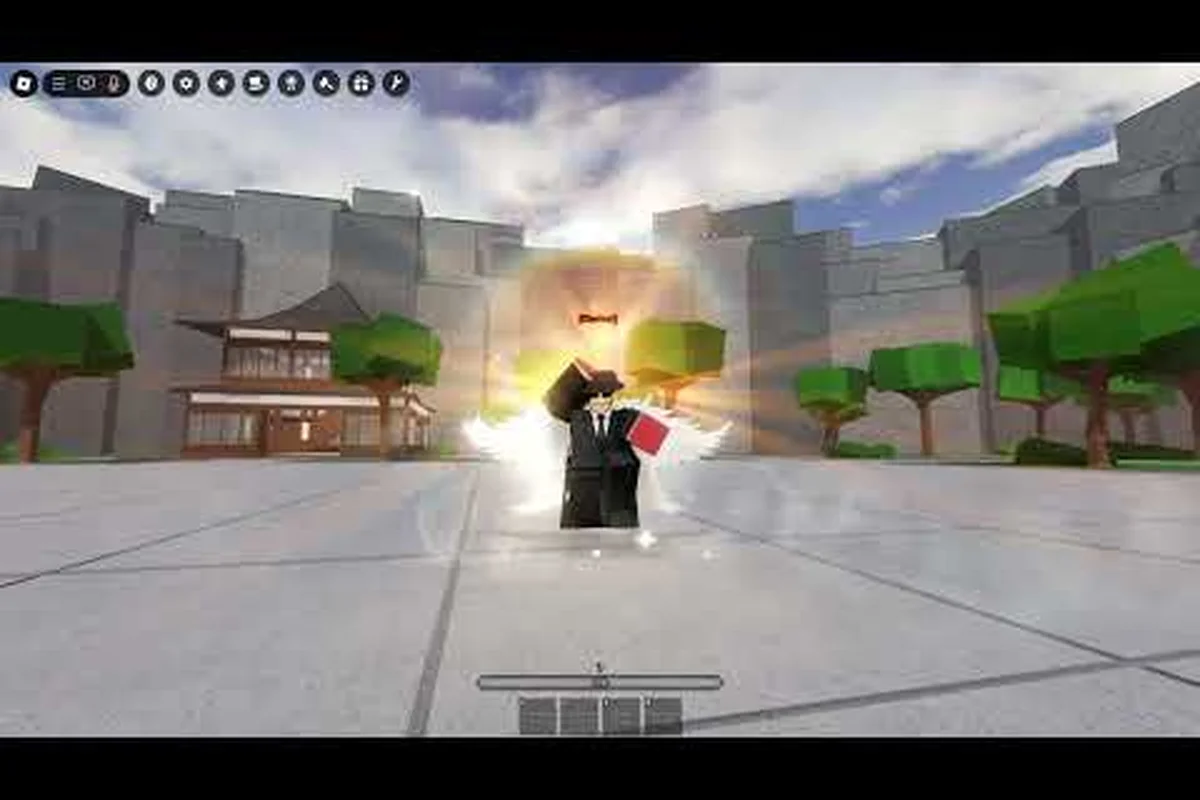
Emoting in Legends Battlegrounds is the fastest way to tilt an opponent before the first punch lands, and this guide shows you exactly how to trigger every animation on PC and mobile. If you have ever wondered how to emote in Legends Battlegrounds without fumbling through menus mid-duel, the answer is simpler than most players expect.
Legends Battlegrounds Emote Basics and Default Keybinds
The emote system in this Roblox fighter runs on a dedicated radial wheel rather than a chat command, which means your keybind choice directly affects how quickly you can taunt after a knockdown. According to community reports, the default layout assigns emotes to a single hotkey that opens the wheel, then you pick a slot with your mouse or thumbstick. Because matches are short and momentum swings fast, learning the default bind before you customize anything saves you from awkward pauses.
Here is how the standard inputs break down across platforms: on PC (keyboard) the emote wheel opens with the B key and you confirm a slot using the mouse cursor plus left click, while PC (gamepad), console, and most controller setups map the wheel to D-pad Up and let you aim with the right stick. Mobile replaces the physical bind entirely with an on-screen emote button that you tap to open and tap again to select a slot, which is why thumb placement matters more than reaction speed on phones. Cancelling is just as important as opening: Esc or right click closes the wheel on keyboard, while B / Circle backs out on gamepad and console, and tapping outside the wheel dismisses it on mobile.
| Platform | Default Emote Input | Wheel Selection | Cancel Input |
|---|---|---|---|
| PC (keyboard) | B key | Mouse cursor + left click | Esc or right click |
| PC (gamepad) | D-pad Up | Right stick | B / Circle |
| Mobile | On-screen emote button | Tap a wheel slot | Tap outside the wheel |
| Console | D-pad Up | Right stick | B / Circle |
A few practical notes that new players consistently miss: the wheel is not a safe menu, so treat every open as a committed action. Because the radial pauses your movement input, opening it mid-combo leaves you standing still while an opponent's M1 string connects, and the short recovery window after an emote animation means a taunt near the ledge can be punished by a single grab. Slot order also matters more than most players assume — the wheel fills your owned animations in a fixed sequence, so if your favorite taunt sits in slot 7 you will fumble the D-pad Up aim under pressure. Rebind or reorder your collection so your go-to emote lands in an early slot before you queue ranked.
-
The wheel pauses your movement input, so never open it while an enemy is mid-combo.
-
Emotes have a short recovery window, meaning you can be punished if you spam them at close range.
-
Your selected emote persists between rounds, so you do not need to re-pick it every match.
The emote wheel itself holds a fixed number of slots, and the game fills empty slots with whatever animations you currently own. If you want a deeper breakdown of slot behavior and how the wheel organizes your collection, the emote wheel guide walks through the full layout. Understanding this structure matters because your keybind is only useful if the right animation sits in an easy-to-reach slot.
Why the Default Bind Matters
Most players rebind before they understand the default, then wonder why their muscle memory fails during ranked sets. The default B key sits close to your movement hand, which keeps your right hand free for camera control. Community testing suggests that keeping the emote key near your dash and block inputs reduces the chance of a misclick during a scramble. Once you can trigger the wheel without looking down, customizing becomes a genuine upgrade instead of a crutch.
How to Change Your Emote Keybind on PC
Rebinding your emote key is the single biggest quality-of-life change for PC players, because the stock layout forces you to move a hand away from combat inputs. The process lives inside the settings menu, and it takes under a minute once you know where to look. Players who fight in fast 1v1 duels often move the emote key to a mouse side button so the wheel opens without interrupting camera movement.
Follow these steps to set a custom emote keybind: the Controls tab stores every action in a scrollable list, so the Emote row sits between Quick Chat and Emote Wheel entries depending on your patch version. Click the current binding, press the new key, and the game writes it to your local profile instantly — no restart required. If you assign a mouse side button, confirm it in a private lobby first, since some multi-button mice register the input as Mouse 4 or Mouse 5 rather than a standard click.
-
Open the main menu and select Settings, then navigate to the Controls tab.
-
Scroll to the Emote action row and click the current binding.
-
Press the key or mouse button you want to assign, then confirm the change.
-
Test the new bind in a private lobby before taking it into a live duel.
Before you commit to a binding, weigh how each option interacts with your existing layout. The default B key keeps your left hand anchored on WASD, but it sits far enough from the mouse that flicking the Emote Wheel mid-strafe can pull your aim off target. Mouse side buttons solve that for aggressive duelists, yet they demand a multi-button mouse and occasionally register as Mouse 4 or Mouse 5 instead of a clean click. Chat-style players who already spam T for taunts may find it doubles as a natural emote trigger, though it can collide with other hotkeys bound to the same row. Left-hand-only setups favor V, a rarer choice that is harder to unlearn once muscle memory sets in.
| Binding Choice | Best For | Trade-off |
|---|---|---|
B (default) | Players who keep hands on WASD | Slightly awkward for camera-heavy play |
| Mouse side button | Aggressive duelists | Requires a multi-button mouse |
T | Players used to chat-style taunts | Can conflict with other hotkeys |
V | Left-hand-only setups | Less common, harder to unlearn later |
If you are still dialing in your overall control scheme, the mobile controls breakdown covers movement, dash, and block inputs that pair naturally with a comfortable emote bind. Getting your core combat keys settled first makes the emote rebind feel like a finishing touch rather than a puzzle piece.
Avoiding Keybind Conflicts
Before you commit to a new key, check whether it already triggers another action. Roblox fighters frequently stack multiple functions on nearby keys, and an emote bind that overlaps with your block or dash will cost you rounds. The safest approach is to pick a key your left hand never uses during a combo, then run a few practice matches to confirm nothing double-fires.
Legends Battlegrounds Emote on Mobile: Touch Controls Explained
Mobile players get a dedicated on-screen emote button that opens the same radial wheel, but the touch layout changes how you should approach timing. Because your thumbs are already managing movement and camera, the emote button usually sits near the edge of the screen where it will not block your view of the fight. Learning to tap it cleanly without dragging your camera is the main skill gap for phone and tablet users.
Here is how mobile emote access compares to other platforms: the on-screen emote button maps to the same radial wheel PC players open with a keyboard key and console players trigger with a D-pad, but slot selection differs — mobile uses a direct tap on the emote you want, PC relies on a cursor click, and console needs a stick flick. That direct-tap input is why mobile has the highest ceiling for legends battlegrounds emote spam, since you can fire off an emote faster than a D-pad flick once the button position is dialed in, though PC still wins on full rebinding freedom and console remains the most limited for customization.
| Feature | Mobile | PC | Console |
|---|---|---|---|
| Trigger method | On-screen button | Keyboard key | D-pad |
| Slot selection | Direct tap | Cursor click | Stick flick |
| Speed of use | Fastest with practice | Fast | Moderate |
| Customization | Button position | Full rebind | Limited |
Practical tips for smoother mobile emoting: start by opening your HUD layout settings and nudging the on-screen emote button toward the lower-right corner, roughly 15–20% in from the edge, so your firing thumb never crosses it mid-strafe. Players running claw grip often shrink the button to around 80% scale to keep the radial wheel from covering the minimap, while two-thumb players do the opposite and enlarge it for a cleaner tap target. Because mobile selects emotes with a direct tap rather than a cursor click or stick flick, your accuracy depends on the wheel's dead zone — if taps keep registering as drags, raise the button's opacity and spacing sliders so each wedge gets more surface area. The payoff is speed: once the position is dialed in, chaining a legends battlegrounds emote spam sequence mid-fight takes fewer inputs than any controller layout allows.
-
Use a two-thumb grip so one thumb can tap the emote button while the other holds the camera.
-
Increase your button size in the HUD settings if you keep missing the tap target.
-
Avoid emoting while airborne, since the wheel can interrupt your landing recovery.
Reported by players, the mobile emote button responds best when you tap rather than hold, because a long press sometimes registers as a drag and cancels the wheel. If your device has a high refresh rate, the wheel animation feels noticeably snappier, which helps in tight duels where every frame counts.
Mobile Performance and Input Lag
Touch input lag varies wildly by device, and that variance affects how reliably your emote fires. On lower-end phones, the wheel can take a beat longer to appear, so mobile players should emote during safe windows rather than mid-combo. Testing in a private lobby first tells you how your specific device behaves before you risk a punish in ranked play.
Legends Battlegrounds Every Emote: What Is in the Wheel
The full emote roster spans free animations, event rewards, and limited-time drops, and knowing what you own helps you build a wheel that actually fits your personality. Community clips have showcased several signature animations, including the Kang Emote, the Honored Emote, and the Lost Woods Duo Emote, each with distinct poses and timing. You can see these in action through the official sneak peeks shared by the developer, such as the Kang Emote official showcase and the Honored Emote official clip.
A rough breakdown of emote categories players encounter: starter emotes ship unlocked on every account, event emotes are tied to limited-time events, collab emotes arrive through crossover promotions, and secret emotes hide behind undocumented unlock methods. The table below sorts each tier by how it is obtained and its typical rarity, which matters when you are deciding how to emote in Legends Battlegrounds without wasting a wheel slot on an animation you can already trigger by default.
| Emote Type | How It Is Obtained | Typical Rarity |
|---|---|---|
| Starter emotes | Available by default | Common |
| Event emotes | Limited-time events | Uncommon |
| Collab emotes | Crossover promotions | Rare |
| Secret emotes | Hidden unlock methods | Very rare |
For a complete walkthrough of unlock conditions and hidden animations, the free emotes collection guide details how to track down the harder-to-find ones. Building a diverse wheel is not just cosmetic, because some emotes have longer animations that make better taunts after a clean knockout.
Reading Emote Rarity
Rarity affects more than bragging rights, since limited emotes often signal how long a player has been around. A collab emote from an old crossover instantly marks a veteran, while starter emotes are everywhere. If you care about standing out, prioritize event and secret emotes, because they appear far less often in public lobbies and carry more visual weight during a post-match taunt.
Emote Showcase and Spam Tactics That Actually Land
An emote showcase is about timing as much as collection, because the best animation in the game means nothing if you trigger it while getting comboed. The strongest players emote after a confirmed knockdown, during a round transition, or right as the victory screen loads. Spamming has its place too, but only when you are safe, since the recovery window leaves you open to a punish if you taunt at the wrong moment.
The table below maps each in-game situation to the tactic that keeps your recovery frames safe, from a single taunt after a knockout to full emote spam once the victory screen locks in. Note the mid-combo row: because emote animations share the same input buffer as your abilities, triggering one during a combo cancels your damage output and hands your opponent a free punish window, which is why it carries a very high risk rating. Between-round emotes sit at low risk since the round transition freezes both players' actions, letting you fire off a quick emote with zero exposure.
| Situation | Recommended Tactic | Risk Level |
|---|---|---|
| After a knockout | Single taunt | Low |
| Between rounds | Quick emote | Low |
| Mid-combo | Never emote | Very high |
| Victory screen | Emote spam | None |
Guidelines for using emotes without throwing your match: treat the emote wheel like any other cooldown, because every taunt locks you into a fixed recovery animation that cannot be cancelled. On PC, bind your emote wheel to a key you can hit without leaving WASD — the default Legends Battlegrounds emote keybind sits on the D-pad, which is why so many players eat a punish mid-taunt. On mobile, drag the emote button to the edge of your HUD so your thumb never crosses the movement stick. The safe rule: emote only when the opponent is downed, the round has ended, or the victory screen has locked in, and never during a trade.
-
Emote only when your opponent is down or the round has ended.
-
Chain two or three quick emotes for a spam effect, but stop before the recovery animation locks you.
-
Save your flashiest emote for a decisive win to maximize the psychological impact.
The emote spam meta is mostly about reading the room. In casual lobbies, a rapid taunt chain is playful and rarely punished. In competitive sets, excessive spamming can backfire if your opponent baits you into emoting at a bad moment and punishes the recovery frames.
Emote Spam and Sportsmanship
Spamming is fun, but the community has mixed feelings about overusing it against newer players. A single taunt after a good round reads as confidence, while constant spam can come across as poor etiquette. Reading your opponent and matching the lobby's tone keeps the rivalry friendly, which matters in a game where the same players often rematch each other repeatedly.
Frequently Asked Questions
What is the default emote keybind in Legends Battlegrounds?
On PC, the default emote input is the B key, which opens the radial wheel for you to select an animation. Gamepad and console players use D-pad Up instead. You can rebind this at any time through the Controls tab in Settings, and the change applies immediately in your next match.
How do I emote on mobile in Legends Battlegrounds?
Mobile players tap the dedicated on-screen emote button to open the wheel, then tap a slot to trigger the animation. For cleaner inputs, enlarge the button in HUD settings and use a two-thumb grip so your camera stays steady. Tapping rather than holding the button prevents accidental drags that cancel the wheel.
Can I spam emotes without getting punished?
Yes, but only during safe windows like knockdowns, round transitions, or the victory screen. Emoting mid-combo leaves you in a recovery animation that an opponent can punish. Chaining two or three quick emotes creates a spam effect, but stop before the recovery frames lock you in place.
How do I get more emotes for my wheel?
You unlock additional emotes through default ownership, limited-time events, crossover promotions, and hidden secret methods. Event and collab emotes tend to be rarer and appear less often in public lobbies. Checking the free emotes collection guide helps you track down the harder-to-find animations and fill empty wheel slots.
Does the emote wheel save my selection between matches?
Yes, your chosen emote persists across rounds and matches, so you do not need to re-select it every time a new duel starts. This persistence means you can set your favorite taunt once and rely on muscle memory to trigger it quickly. Empty slots stay empty until you unlock more animations to fill them.
Emoting in Legends Battlegrounds comes down to three things: a comfortable keybind, a wheel stocked with animations you actually like, and the discipline to taunt only when you are safe. Nail the default input first, rebind it once your muscle memory settles, and treat spam as a reward for winning rather than a habit during the fight. Do that, and every knockout ends with the right animation instead of a punish.